UI: Per-Step Controls (Pass 2)
This pass adds a reusable knob form that binds to any single field in stepData
for the currently selected step. One form definition covers all four per-step
parameters — velocity, detune, filter, and wavetable position — by passing
different macro values at instantiation.
The step_knob Form
Section titled “The step_knob Form”Create the Form
Section titled “Create the Form”Right-click patches -> main -> ui in the file tree and choose Create new
Form. Name it step_knob.
Open the YAML editor for step_knob and enter:
# form: "step_knob"
width: 60height: 80controls:  knob:    anchors: { hCenter: 0, top: 20, width: 45, height: 45 }    type: knob    props:      displayMode: standard      onChangeEnd: on_change      bipolar: $bipolar  label:    anchors: { hCenter: 0, top: 0, width: 60, height: 20 }    type: text    props:      text: $title
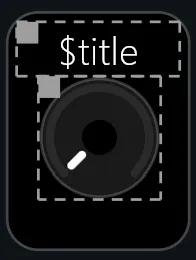
The form is intentionally minimal: a text label anchored to the top, and a knob centred below it. Two macros are declared here:
$title— the caption shown above the knob; set by the parent form.$bipolar— passed through to the knob’sbipolarprop so the embedding form can choose whether the knob sweeps 0–1 or −1 to +1.
Press Apply after entering the YAML.
Lua Script
Section titled “Lua Script”Open the script editor for step_knob and enter:
local stepslocal stepSelected
local modTarget = sys_form_macros["$modTarget"]
function updateKnob()  if (not stepSelected) or (not steps) or not(modTarget) then    return  end  local step = steps[stepSelected]  local modValue = step[modTarget]  sys_modify_control("knob", "props", { value = modValue })end
function stepsChanged(value)  steps = value  updateKnob()end
function stepSelectedChanged(step)  stepSelected = step  updateKnob()end
stepsChanged(sys_subscribe_to_parameter("stepData", stepsChanged))stepSelectedChanged(sys_subscribe_to_parameter("stepSelected", stepSelectedChanged))
function on_change(ctrlName, value)  if (not stepSelected) or (not steps) or not(modTarget) then    return  end  local step = steps[stepSelected]  step[modTarget] = value  sys_set_parameter_value("stepData", steps)end
Press Apply after entering the script.
How It Works
Section titled “How It Works”$modTarget is the third macro — read from sys_form_macros in the script
rather than declared in the YAML, because it isn’t a UI property; it’s pure
script logic. It holds the field name to read and write in stepData (e.g.
"velocity", "tune", "filter", "wtPos").
At load time the script subscribes to both stepData and stepSelected. Either
subscription firing calls updateKnob, which reads
steps[stepSelected][modTarget] and pushes the value to the knob via
sys_modify_control — keeping the display in sync whenever the user clicks a
different step or another form edits the data.
When the user moves the knob, on_change writes the new value back into the
local steps table at the correct field and publishes the updated table to
stepData. Because sys_set_parameter_value does not fire the calling form’s
own subscription callback, the local steps copy is already up to date — no
manual updateKnob() call is needed here.
The step_controls Form
Section titled “The step_controls Form”step_controls composes the four step_knob instances into a single panel and
adds the batch-modify controls backed by the parameters added in
Global Parameters Pass 2.
Create the Form
Section titled “Create the Form”Right-click patches -> main -> ui and choose Create new Form. Name it
step_controls.
# form: "step_controls"
width: 640height: 82controls:  bg.image:    anchors: { left: 0, top: 0, right: 0, bottom: 0 }    type: image    props:      image: "step_controls_bg.svg"  velo_knob:    pos: { x: 5, y: 3, w: 60, h: 80 }    type: subForm    props:      form: step_knob      macroParameters: { $modTarget: velocity, $title: VELO }  tune_knob:    pos: { x: 85, y: 3, w: 60, h: 80 }    type: subForm    props:      form: step_knob      macroParameters: { $modTarget: tune, $title: DETUNE, $bipolar: "true" }  filter_knob:    pos: { x: 165, y: 3, w: 60, h: 80 }    type: subForm    props:      form: step_knob      macroParameters: { $modTarget: filter, $title: FILTER }  wt_knob:    pos: { x: 245, y: 3, w: 60, h: 80 }    type: subForm    props:      form: step_knob      macroParameters: { $modTarget: wtPos, $title: SOUND }  batchChangeTarget:    pos: { x: 359, y: 40, w: 85, h: 30 }    type: menuButton    props:      parameterUid: "batchChangeTarget"      entries:        - VELO        - DETUNE        - FILTER        - SOUND  randomize:    pos: { x: 461, y: 40, w: 85, h: 30 }    type: button    props:      text: RANDOMIZE      onPressed: on_randomize  rand_fader:    pos: { x: 461, y: 9, w: 85, h: 25 }    type: fader    props:      orientation: horizontal      parameterUid: randomizeRange  caption:    pos: { x: 349, y: 8, w: 100, h: 30 }    type: text    props:      text: "MODIFY ALL:"  reset_button:    pos: { x: 559, y: 40, w: 70, h: 30 }    type: button    props:      text: "DEFAULTS"      onPressed: on_set_defaults
The four step_knob subforms sit on the left. Each passes a different
$modTarget field name and a human-readable $title; the detune knob also sets
$bipolar: "true" so it sweeps −1 to +1 instead of 0 to 1.
The right-hand section is the batch-modify panel. batchChangeTarget and
rand_fader use parameterUid to wire directly to their global parameters — no
script subscription needed for those two controls; the platform keeps them in
sync automatically.
Press Apply after entering the YAML.

Lua Script
Section titled “Lua Script”local batchChangeTargetlocal randomizeRange
function batchChangeTargetChanged(value) batchChangeTarget = valueend
function randomizeRangeChanged(value) randomizeRange = valueend
batchChangeTargetChanged(sys_subscribe_to_parameter("batchChangeTarget", batchChangeTargetChanged))randomizeRangeChanged(sys_subscribe_to_parameter("randomizeRange", randomizeRangeChanged))
local stepssteps = sys_subscribe_to_parameter("stepData", function(x) steps = x end)
function clamp0to1(n) return math.min(math.max(n, 0), 1)end
function on_randomize(ctrlName) for i = 1, 16 do local step = steps[i] local diff = math.random() * (2 * randomizeRange) - randomizeRange if batchChangeTarget == 0 then step.velocity = clamp0to1(step.velocity + diff) elseif batchChangeTarget == 1 then step.tune = clamp0to1(step.tune + diff) elseif batchChangeTarget == 2 then step.filter = clamp0to1(step.filter + diff) elseif batchChangeTarget == 3 then step.wtPos = clamp0to1(step.wtPos + diff) end end sys_set_parameter_value("stepData", steps)end
function on_set_defaults(ctrlName) for i = 1, 16 do local step = steps[i] if batchChangeTarget == 0 then step.velocity = 0.8 elseif batchChangeTarget == 1 then step.tune = 0.5 elseif batchChangeTarget == 2 then step.filter = 0.2 elseif batchChangeTarget == 3 then step.wtPos = 0.5 end end sys_set_parameter_value("stepData", steps)endPress Apply after entering the script.
How It Works
Section titled “How It Works”Target selection — batchChangeTarget is a 0-based integer matching the
order of the menuButton entries (0 = VELO, 1 = DETUNE, 2 = FILTER, 3 = SOUND).
The menuButton writes it directly via parameterUid; the script subscribes to
read it for the two button handlers.
Randomize — on_randomize iterates all 16 steps and adds a random offset to
the selected field. The offset is drawn from the range
[−randomizeRange, +randomizeRange], then clamped to 0–1 so no step goes out of
bounds. The updated table is published in one sys_set_parameter_value call,
which notifies all subscribed forms (including the four step_knob instances)
in one shot.
Defaults — on_set_defaults resets the selected field to its original
default value across all 16 steps. The default values match those used in the
stepData generator in Global Parameters Pass 1.
stepData subscription — unlike the named callbacks for the other two
parameters, stepData uses an inline anonymous function. This form only ever
needs the latest snapshot of steps to operate on; it never needs to react
visually to data changes, so a one-liner is sufficient.
Apply the Global Style Sheet
Section titled “Apply the Global Style Sheet”With several knobs now visible in the editor, this is the right moment to apply the project’s global style sheet. The style sheet configures the default appearance of every standard control — knob graphics, colours, fonts — in one shot. Applying it now lets you see the effect immediately: all knobs on screen will update at once, which is the whole point of a global style sheet.
Open the Style Editor from the editor’s main menu.
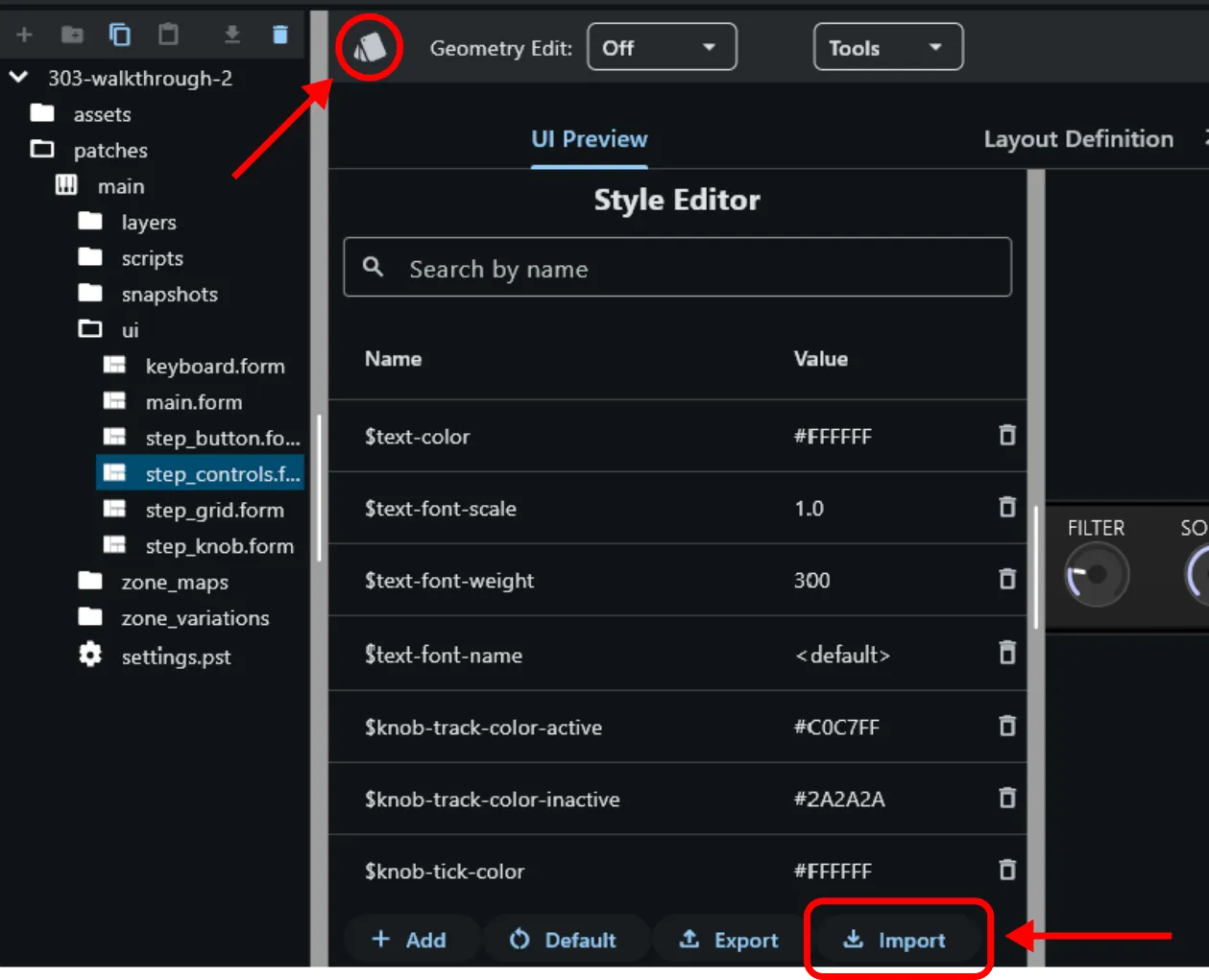
Click Import and select the style sheet file from the unpacked asset bundle. The editor applies it immediately and every knob in the project switches to the bundled look simultaneously.

Wire step_controls into the Main Form
Section titled “Wire step_controls into the Main Form”Open the main form’s YAML. Add the stepControls entry inside the existing
controls: block, at the same indentation level as steps and keyboard:
width: 700height: 560controls:  bg_image:    anchors: { left: 0, top: 0, right: 0, bottom: 0 }    type: image    props:      image: plugin_bg.png
  steps:    pos: { x: 30, y: 63, w: 640, h: 72 }    type: subForm    props:      form: step_grid
  stepControls:    pos: { x: 30, y: 155, w: 640, h: 82 }    type: subForm    props:      form: step_controls
  keyboard:    pos: { x: 5, y: 423, w: 690, h: 130 }    type: subForm    props:      form: keyboard
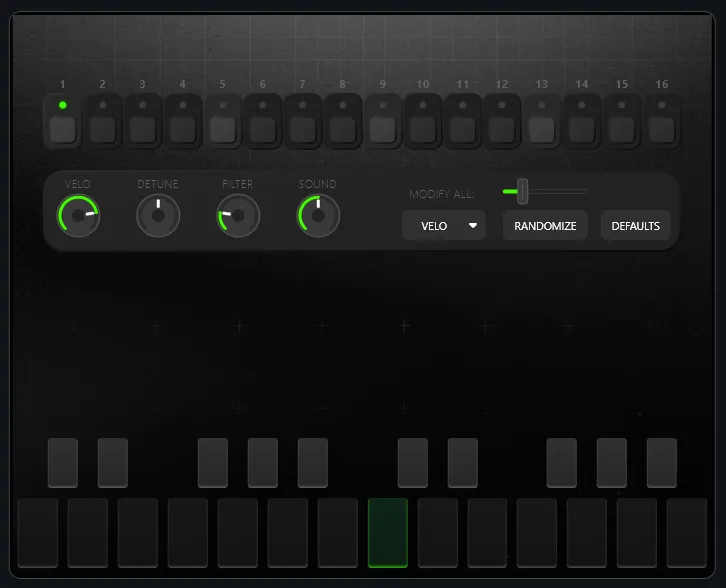
Press Apply. The per-step knob panel appears between the step grid and the keyboard.
Try It Out
Section titled “Try It Out”The instrument is now nearly complete. Each step has independently editable velocity, detune, filter, and wavetable position — all reflected live in the knob panel as you click through steps. The most dramatic way to verify everything is working is with the randomiser:
- Start playback by holding any key.
- In the MODIFY ALL panel, open the target menu and select FILTER.
- Drag the range fader to around 50%.
- Hit RANDOMIZE.
The filter envelope depth will scatter across all 16 steps immediately. You should hear the character of each note change on the fly — some steps hitting fully open, others barely moving the filter. Hit DEFAULTS to reset the filter back to a uniform value across all steps, then try the same with SOUND (wavetable position) for a more timbral variation.
Outline
Section titled “Outline”- Global controls panel (volume, filter, delay, reverb)